Setup VPN on your personal device
Please follow the steps below to set up VPN on your personal laptop.
Step 1: Download and install FortiClient VPN from
https://filestore.fortinet.com/forticlient/downloads/FortiClientVPNOnlineInstaller_6.4.exe
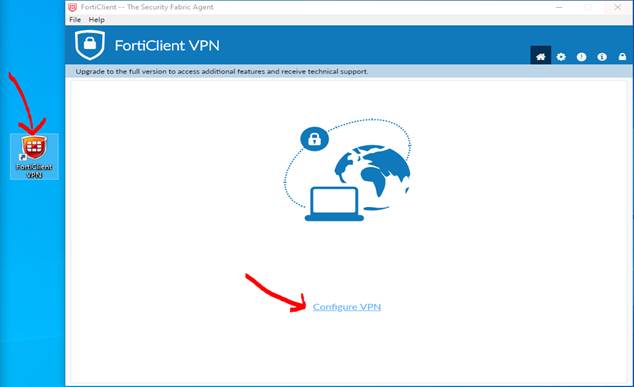
Step 2: Double click on the FortiClient VPN icon from the desktop and then click on Configure VPN.
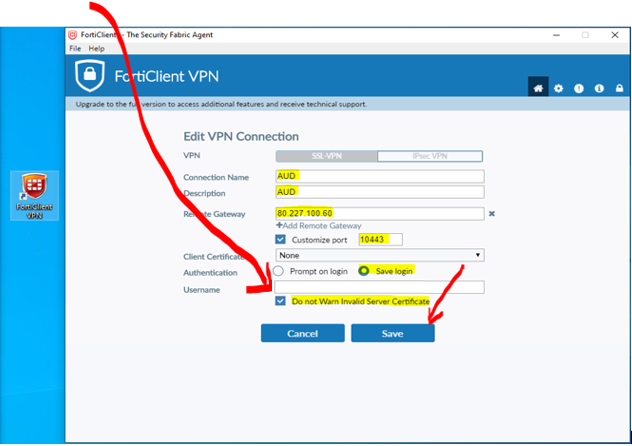
Step 3: Enter the following information and then click on Save.
Username is your username , IP Address is 80.227.100.60 and Port is 10443
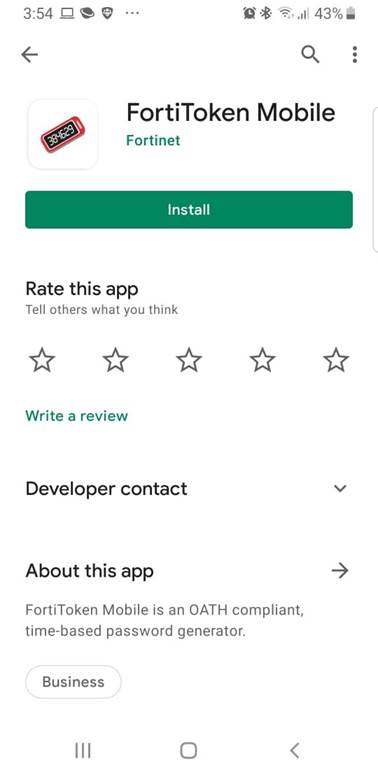
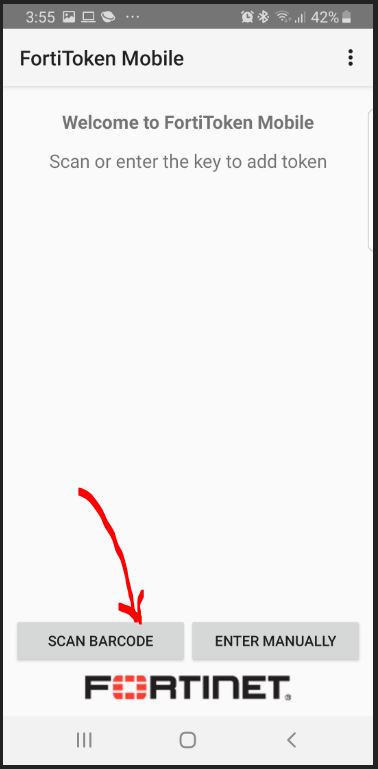
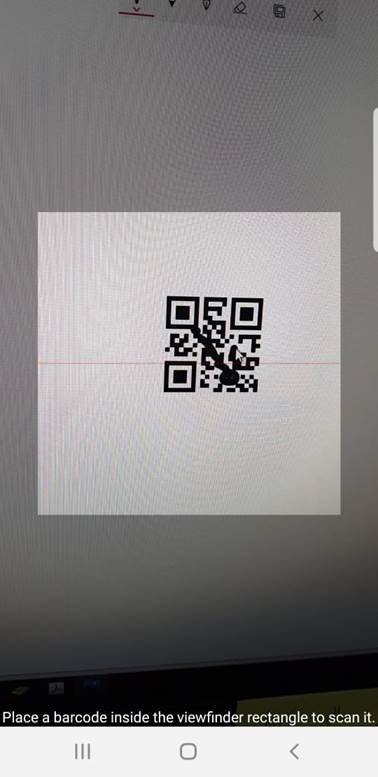
Step 4: Install FortiToken Mobile App on your smart mobile device and then open it and click on "SCAN BARCODE" to scan the barcode that you received by email. Once the scan is completed you will get a Forti Token on your FortToken App.
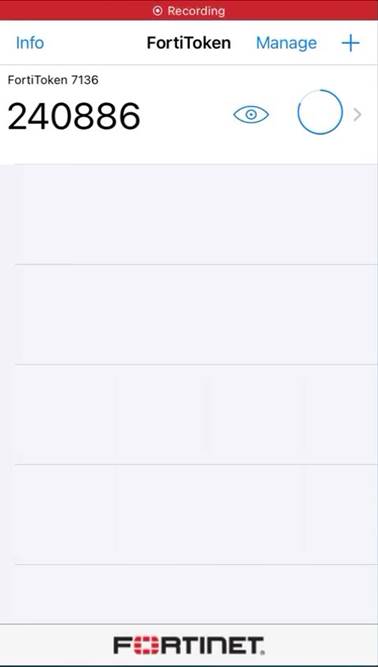
Step 5: Enter your AUD password and the token that you received on your mobile device and then click on Connect.
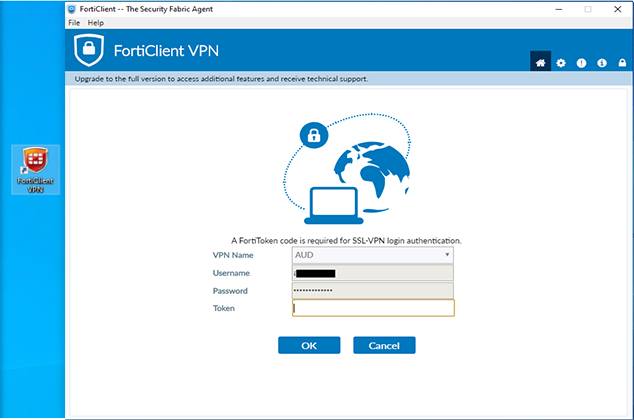
Step 6: Wait until you get connected to AUD VPN with the following message.
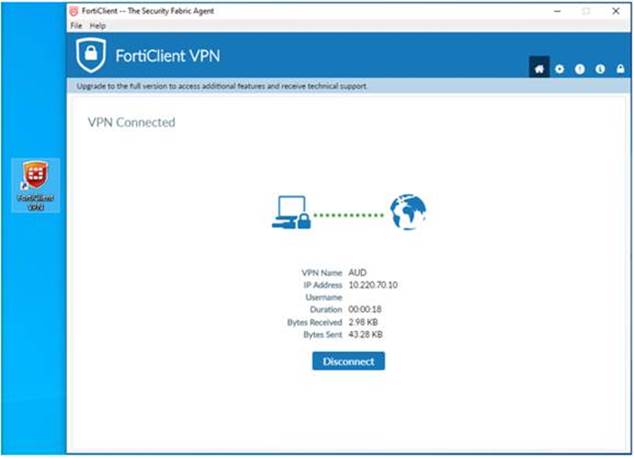
Please follow the steps below to connect your office PC remotely
Step 1: Search for MSTSC or Remote Desktop Connection from your windows search.
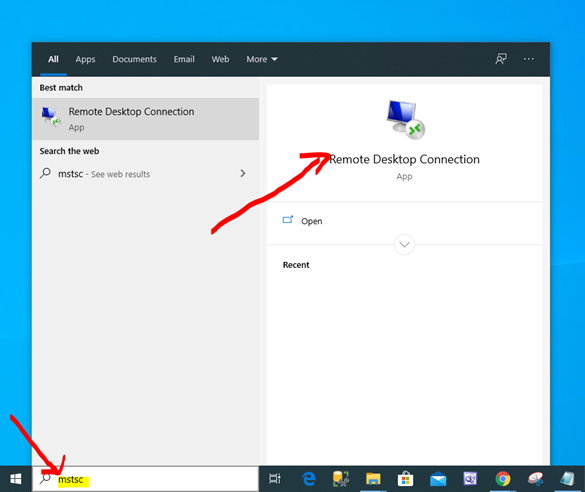
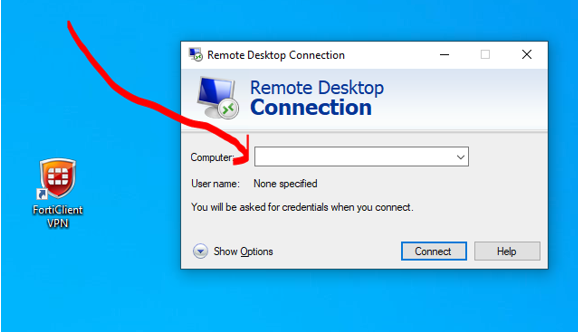
Step 2: Enter your office computer name and then click on Connect.
(Note: If you don"t know your office computer name, logon to https://vpn.aud.edu/ to get complete instructions with actual computer name)
Step 8: Enter your username "auda\" and enter your AUD password and then click OK to get connected to the remote PC.
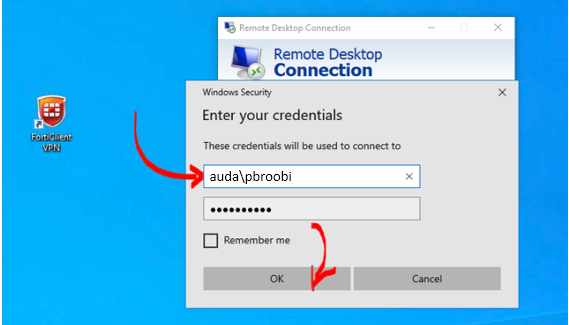
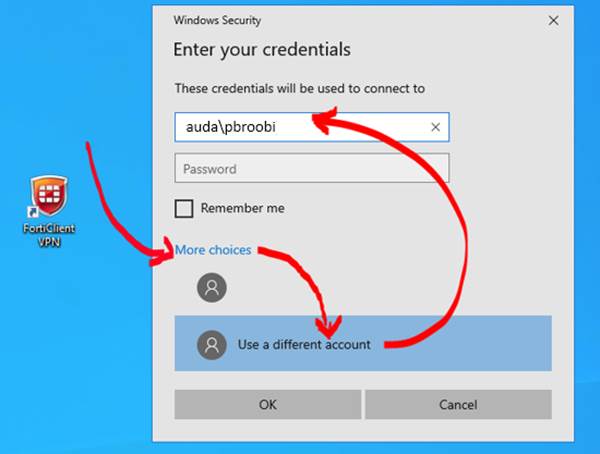
In case if you don™t have an active textbox to enter your user name, click on More choices > Use a different account and then enter your AUD username as shown below.